
Appearance
Demo companies
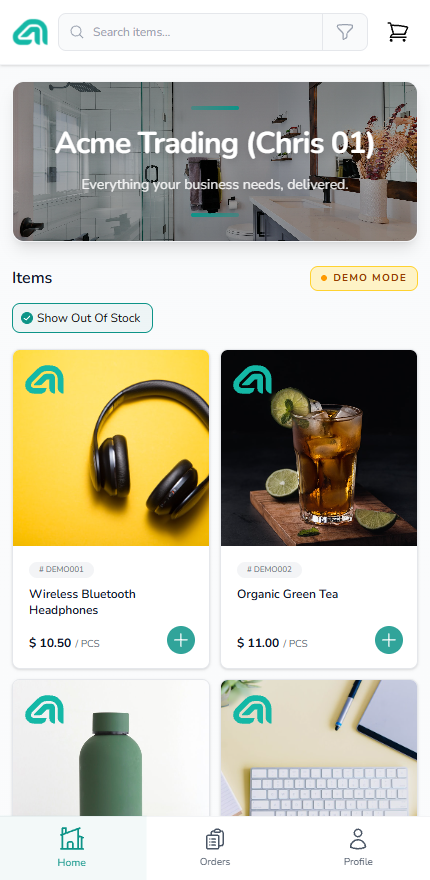
A demo company comes ready to show. It arrives with a catalogue, a customer, and a login already in place, so you can walk someone through ordering without connecting AutoCount or entering any real data.
The same demo catalogue is there on the full portal —
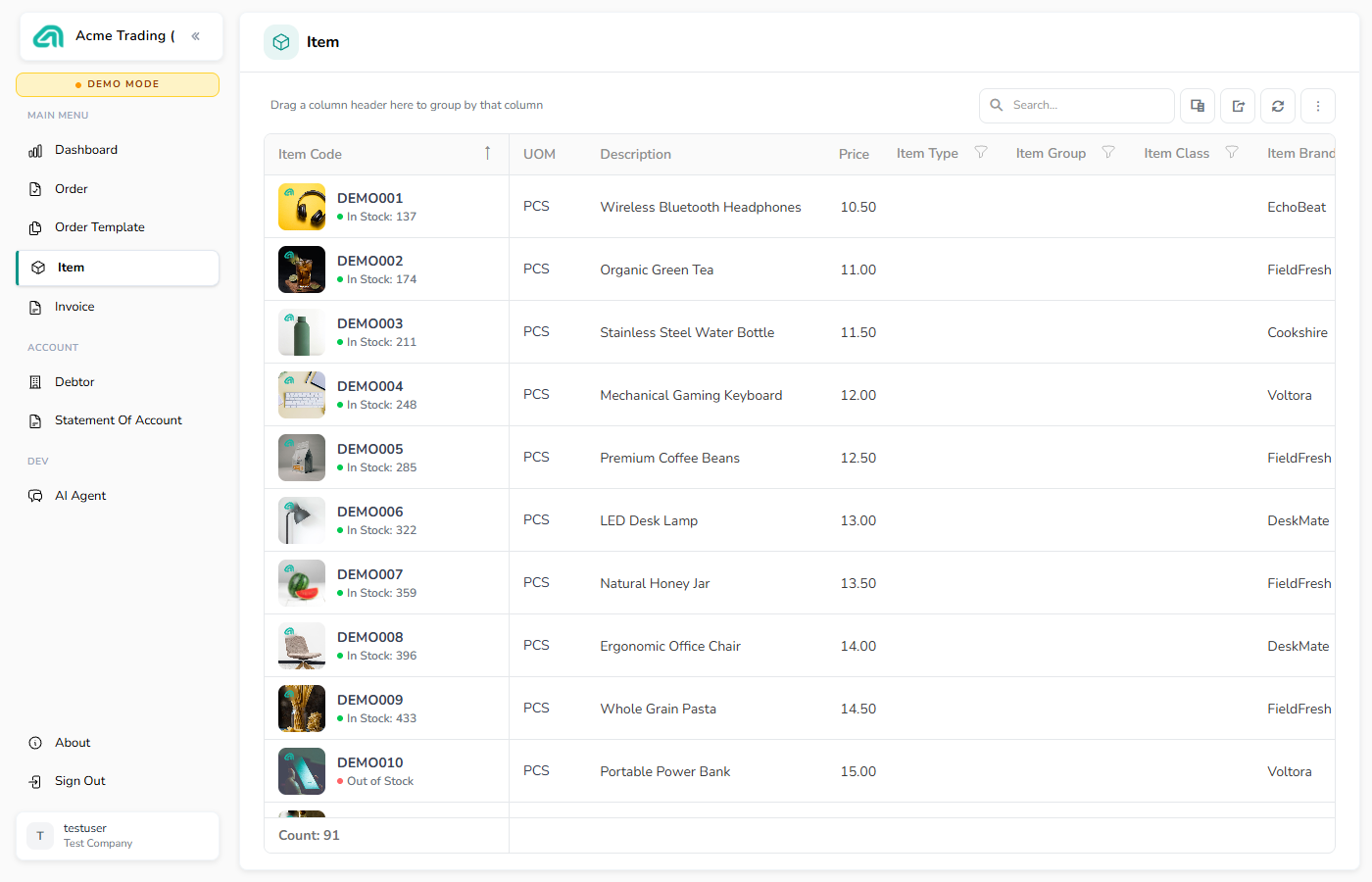
— and on mobile:
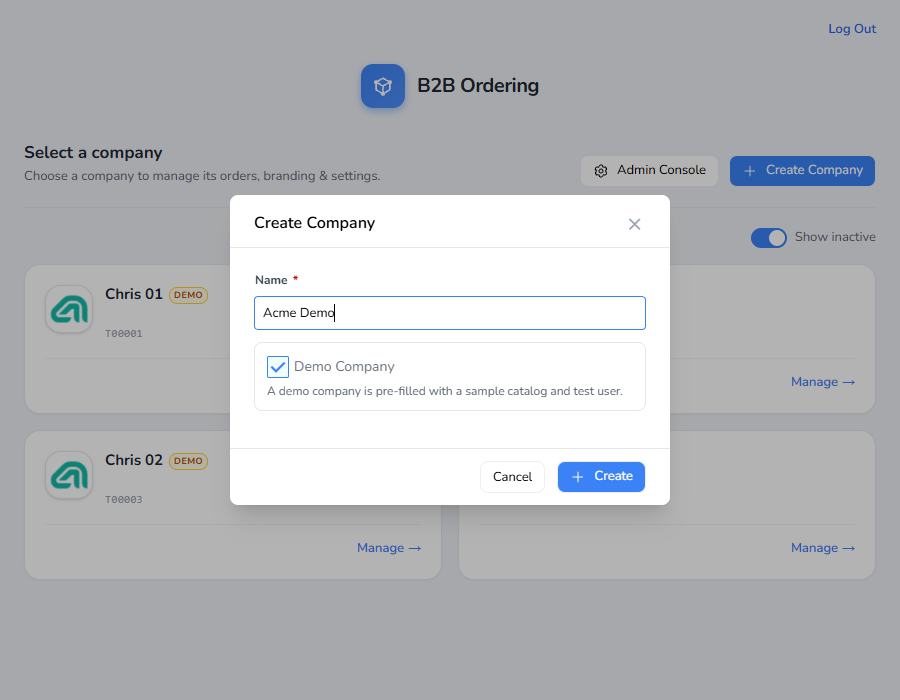
Tick Demo Company when you create the company. It cannot be changed afterwards — a company is either a demo or it isn't, so create a fresh one if you need the other kind.
What you get
- A catalogue — 91 products, coded
DEMO001toDEMO091, across 12 categories and 8 brands: audio, cables, beverages, kitchenware, office supplies, and so on. Each is sold both singly (PCS) and by the carton of 12, priced about 5% below buying singly. - Stock — every product carries a balance, except a handful left deliberately out of stock so you can show what an unavailable item looks like.
- A warehouse — one stock location,
MAIN. - A customer — one debtor,
DEMO-CUST/ "Test Company", with a main branch, an address, and a phone number. - A login — one portal user,
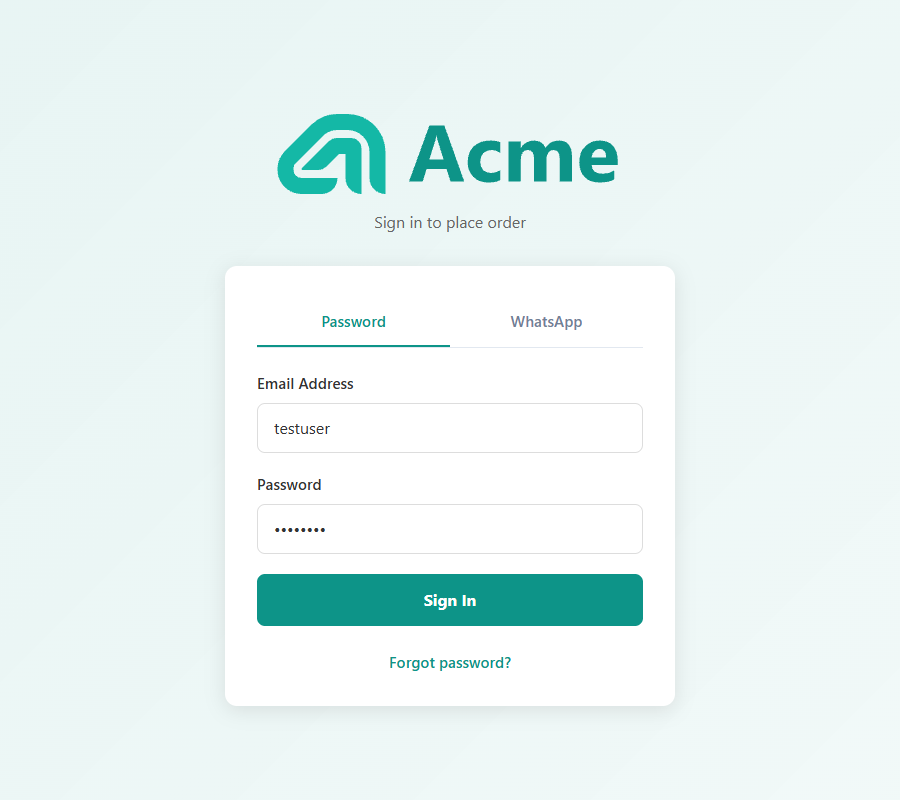
testuser, passwordtestuser.
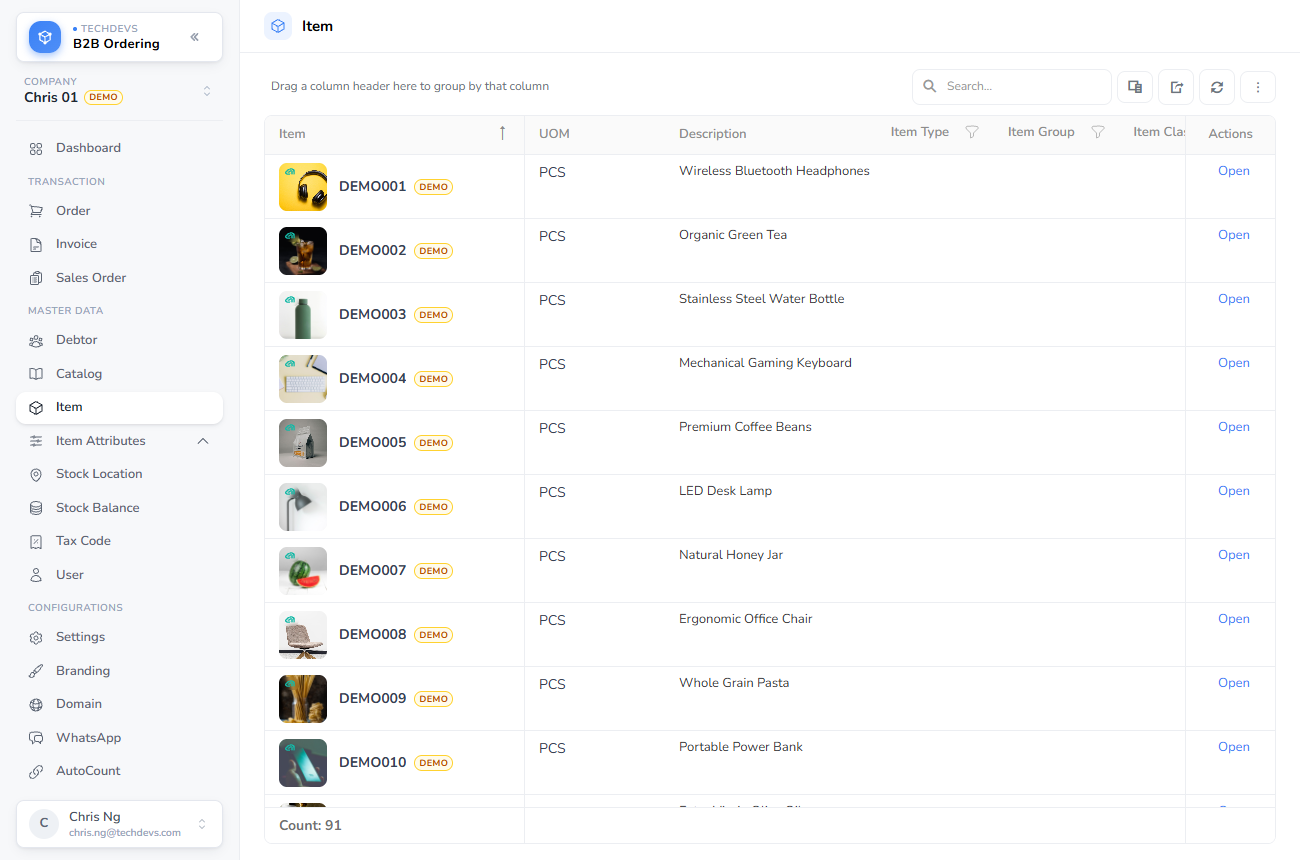
The products arrive as ordinary master data, each marked as demo:
You don't have to type the login
On a demo company's portal the sign-in page fills those credentials in for you, so you can go straight from the sign-in screen to placing an order.
Its own web address
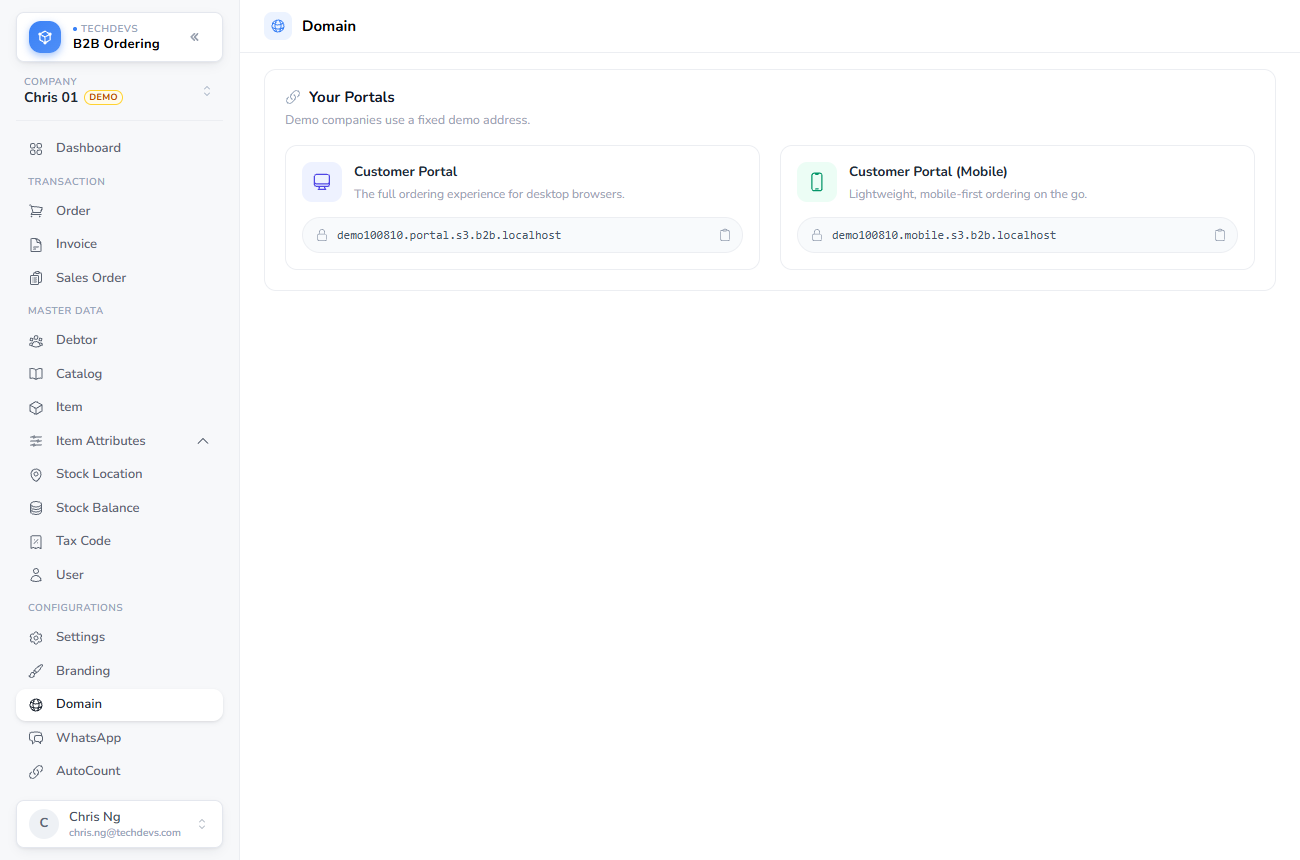
Each demo company is given its own address automatically, in the form demo followed by six digits. It is assigned when the company is created and cannot be changed afterwards, so it is safe to hand out or bookmark. You will find both portal addresses under Domain.
How it looks
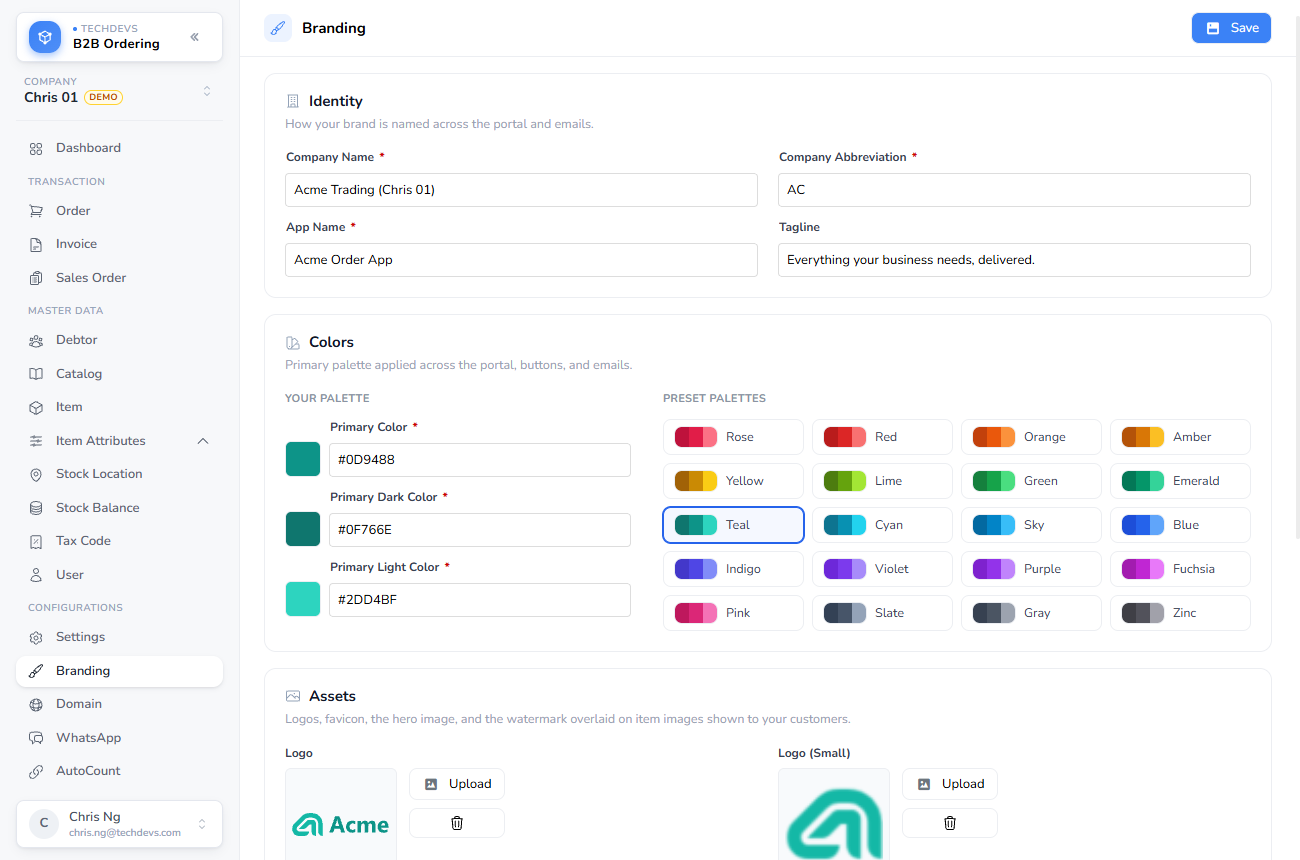
A demo company starts pre-branded — its own logo, app name, and teal colour scheme — so it looks like a working shop from the first screen instead of an empty template. None of it is fixed: change the logo, colours, and names under Branding whenever you want the demo to resemble a particular customer.
WhatsApp
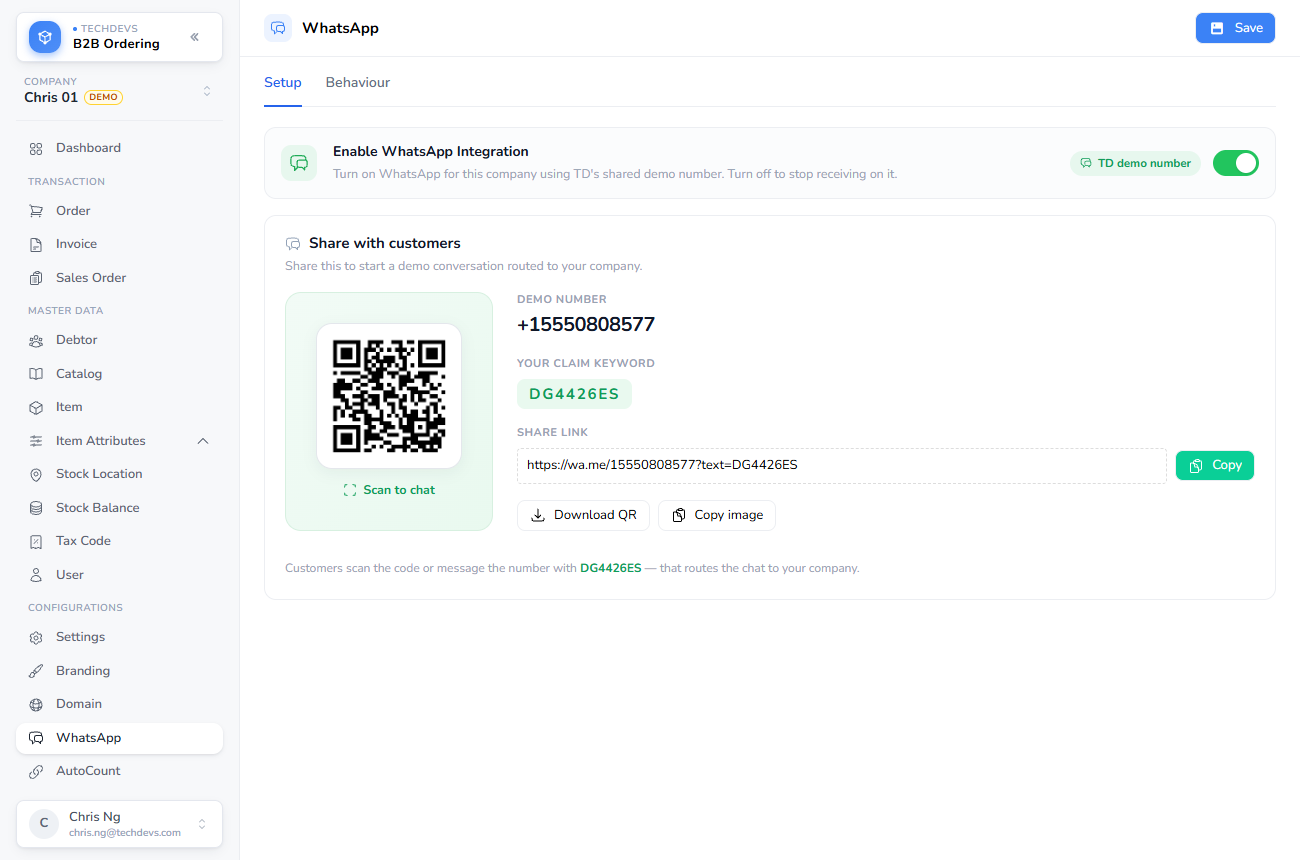
Ordering over WhatsApp works on a demo company with nothing to set up — it uses a number we run, shared by all demo companies. Switch it on under WhatsApp, and the number, QR code, and the company's claim keyword are there to share.
See Demo WhatsApp number.
Using a demo company with AutoCount
A demo company can still be connected to AutoCount, and orders placed against the demo data post across and run the full cycle. It behaves a little differently from a real company, because the demo data lives only in B2B Ordering:
- The customer is matched. AutoCount creates a debtor corresponding to the demo debtor, so orders have somewhere to land.
- The products are not. AutoCount does not create the demo items, branches, or the rest of the demo master data.
- Order lines post as descriptions. Because the demo products don't exist on the AutoCount side, each line posts with its details and description but no item selected.
So an order placed by the demo user, for the demo customer, using demo products, still posts into AutoCount and can be taken through the full cycle from there.
What isn't included
The seeded data covers what a demo needs and no more. There are no tax codes, item groups, orders, or invoices — the catalogue, the one customer, and the one login are the whole of it.